Are you experiencing the frustrating issue of your Windows 11 Wifi Not Showing Up? Don't worry, you're not alone. Many users have encountered this problem, and we are here to help you fix it.
When your Windows 11 device can't connect to Wi-Fi or the available networks are not showing up, it can be quite inconvenient. However, there are several potential solutions that can get you back online in no time.
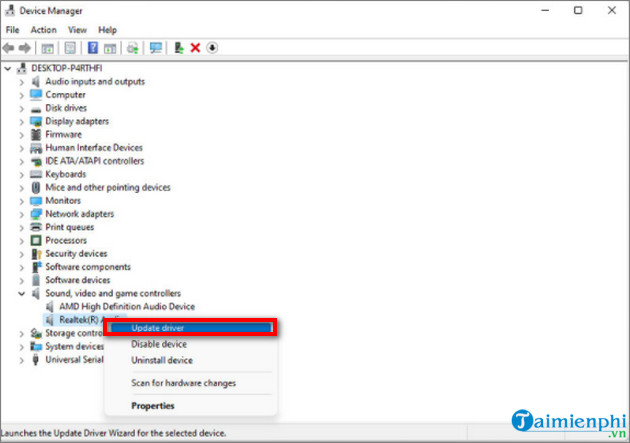
Firstly, try restarting your computer and router. Sometimes a simple reboot can resolve connectivity issues. If that doesn't work, make sure that the Wi-Fi adapter is enabled on your device. You can do this by going to the Device Manager and checking if the adapter is enabled and functioning properly.
If the issue persists, updating your network drivers might help. Visit the manufacturer's website for your Wi-Fi adapter and download the latest drivers compatible with Windows 11.
Another troubleshooting step is to reset your network settings. Open the Settings app on Windows 11, go to Network & Internet, select Advanced network settings, and click on Network reset. This will remove any custom network configurations and reset them back to default settings.
Additionally, check if there are any pending Windows updates for your system as these updates often include bug fixes related to connectivity issues.
In some cases, disabling IPv6 or changing other advanced network settings may also resolve the problem. However, it's recommended to consult with a technical expert or refer to official Microsoft support resources for detailed instructions specific to your situation.
Remember that each system may have unique factors contributing to this issue; therefore, it's important to explore different solutions until you find one that works for you.
By following these steps and exploring the possible solutions mentioned above, you should be able to fix the "Windows 11 Wifi not showing up" problem and regain access to wireless networks seamlessly.
In the process of using Windows 11, if you have trouble losing Wifi, can't connect to Wifi or Wifi doesn't work without knowing how to fix it, you can refer to the simple guide to fixing Wifi loss on Windows 11 Click here and follow the instructions.
With the Windows 11 operating system, you can modify the Wifi network settings as you like, however, sometimes these changes can backfire causing Wifi errors, losing Wifi options, or not showing the Wifi icon. , in such situations, the last method you can do is to reset Network Settings to fix Windows 11 Wifi not showing up
How To Fix Windows 11 Wifi Not Showing Up
Step 1: Press Windows + i key combination to enter Windows Settings.
Step 2: Select the Network & Internet option in the list on the left.
Step 3: Now, scroll down and click on Advanced Network Settings .

Step 4: In the Advanced Network Settings section , select Network Reset .

Step 5: Finally, click Reset Now.

Step 6: Select Yes and the reboot will start in 5 minutes. The restart is to ensure that all changes are successfully implemented, and also fix Wifi loss on Windows 11.
Note: You need to save the work in progress, close other applications, and start Restart your PC to finish resetting network settings on Windows 11.

After a few minutes, Windows 11 will restart and all your networking functions will be reset to factory settings, Wifi loss error on Windows 11 is fixed, and you can connect to Wifi as usual.
Read More: How To Fix Windows 11 Sound Not Working
Tag: windows 11 wifi not showing up, Windows 11 wifi not showing, wifi not showing in Windows 11, wifi network not showing up Windows 11, Windows 11 can't connect to wifi, Windows 11 not connecting to wifi. wifi not showing up Windows 11, wifi missing Windows 11, Windows 11 no wifi, Lenovo laptop not detecting wireless network Windows 11, hp laptop won't connect to Wi-Fi Windows 11, Windows 11 cannot connect to wifi, Windows 11 won't connect to wifi, wifi can't connect to this network windows 11