How To Fix Sound Errors on Windows 10
You play a game or watch a movie on your PC but don't hear any sound coming from it. On the surface, there is no obvious reason for the loss of sound. The problem may appear after you update the operating system, due to program or software conflicts from 3rd parties. In this article, we will introduce you to some ways to check and fix audio errors on Windows 10.

The audio bug can be caused by 3rd party software and requires a patch. The problem can also be due to Windows 10 itself or from some hardware. The following guide starts with ways to fix the error from simple steps and goes deeper into Windows 10 if you continue to face the problem of losing sound.
How To Fix Sound Errors On Windows 10
1. Implement Basic Methods First
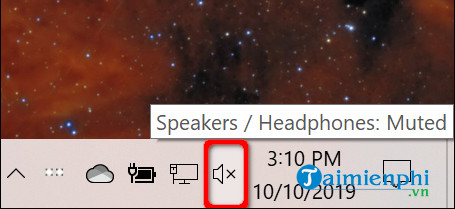
First, you need to verify that the sound is not accidentally muted on the PC. If your keyboard has a volume control, press the key or adjust the controls to see if the volume goes up and down. You can also check the speaker icon next to the system clock.
As the below screenshot shows, the speaker icon with an X means that the sound is off. Simply click on it to expand the audio panel.
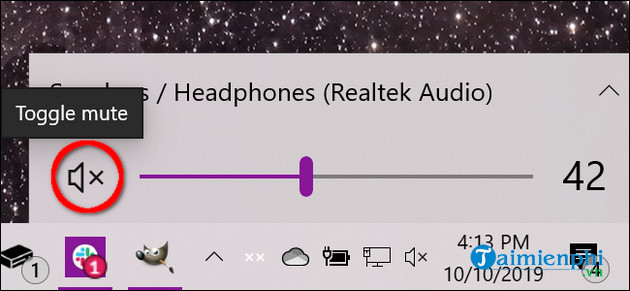
Next, click on the speaker icon to the left of the slider to open the sound.
You should also verify that the sound is not muted at the hardware. For example, your speakers might have volume buttons, or they might accidentally be unplugged from your PC or power outlet. Similarly, your headphones or microphone might include volume controls that have been disabled or are not connected to your PC.
Another simple fix is to make sure that the problem is not related to a specific application or program installed on your computer. For example, the sound is muted on YouTube.

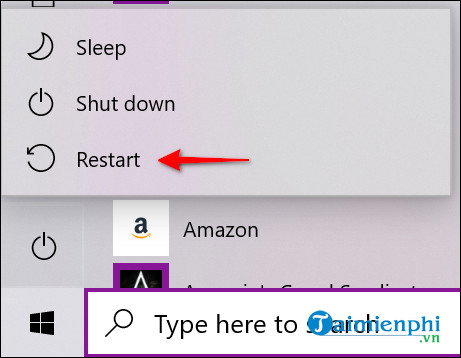
In addition, users can also try installing all Windows 10 updates or restart the computer.
2. Check The Audio Equipment
In general, you should only have one audio device installed. However, the list piles up when you start installing external devices like HTC Vive, wireless Xbox controllers, headphones, etc.
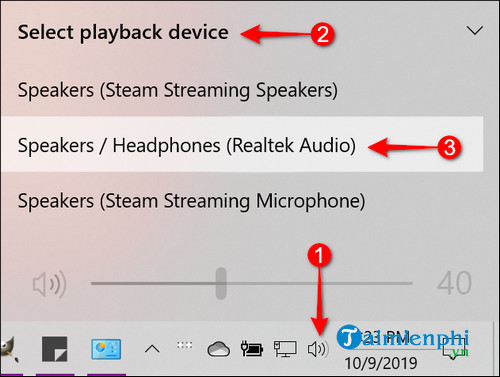
There may be situations where you switch from headphones to your laptop's existing speakers, but Windows 10 still plays audio through those disconnected headphones. You can verify the default audio device in 1 of 2 ways: from the taskbar or Control Panel.
Check the audio device from the taskbar: Click on the speaker icon located next to the system clock. You'll see 1 name listed on the volume control panel. Click on the name to open the Select Playback Device list and select a different audio device until you hear audio.
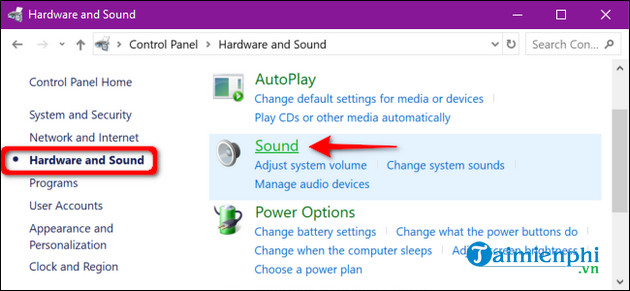
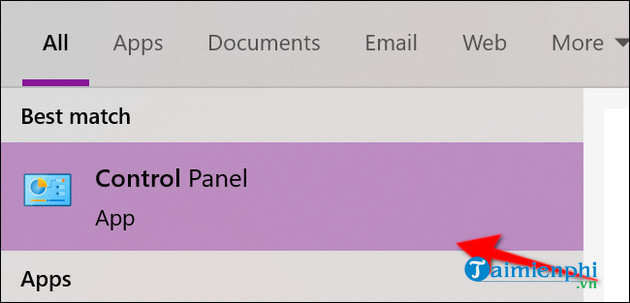
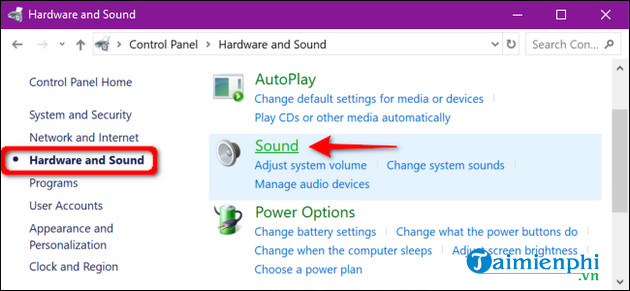
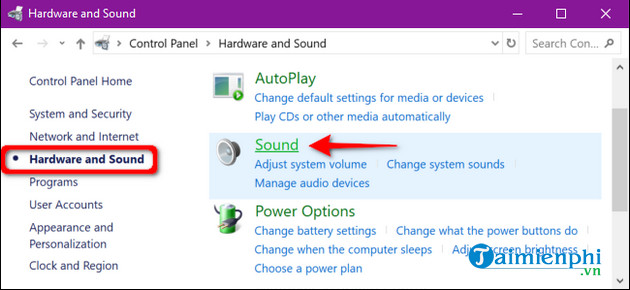
Check the audio device via Control Panel: You enter the keyword Control Panel in the search field on the toolbar and select Control Panel from the search results. Next, select Hardware and Sound > Sound.
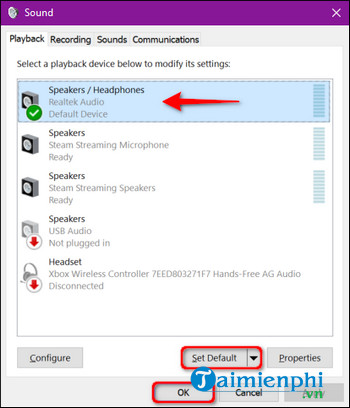
In the Sound window, set your audio device as the default device by clicking on it and pressing the Set Default button. Finally, click OK to save changes.
3. Run The Troubleshooter
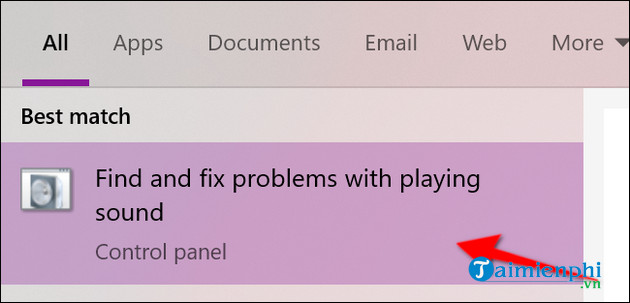
Windows 10 includes a built-in troubleshooter that scans the system and provides a possible fix. Enter the keyword Audio in the search field on the taskbar and click Find and Fix Problems with Playing Sound from the search results to open the troubleshooter in the Control Panel.
You can also access some troubleshooters by going to Start > Settings > System > Sound > Troubleshoot.
After the troubleshooter scans the audio devices, select the device that needs to be processed and click the Next button.
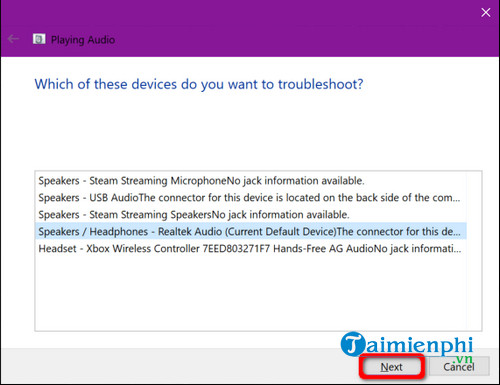
Windows 10 scans for problems. You follow any instructions available to resolve the audio loss error on the computer.
4. Restart The Audio Device
Enter the keyword Services in the search field on the taskbar and select Services from the search results.
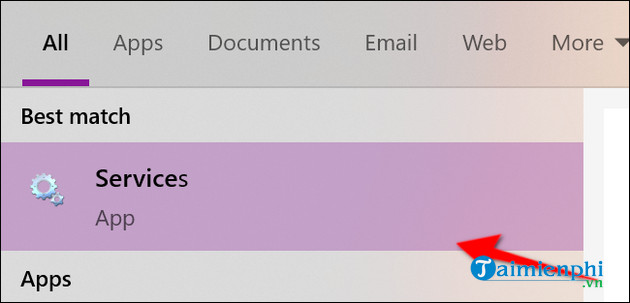
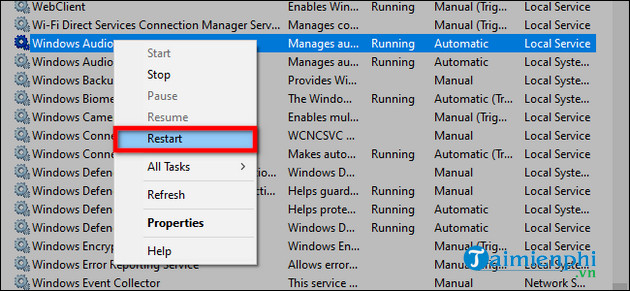
In the Services window, you will need to restart the following 3 services:
- Remote Procedure Call (RPC)
- Windows Audio- Windows Audio
Endpoint Builder
For each service, you click to select, right-click to open the service's menu, and then select the Restart option. If the Restart button is grayed out, replace it with the Refresh button.
5. Turn Off Audio Enhancements
These "enhancements" are provided by audio hardware manufacturers and Microsoft to provide the best experience possible. However, they can be the cause of the problem.
You type Control Panel in the search field on the taskbar and select Control Panel from the search results.
Select Hardware and Sound from the main Control Panel menu and then Sound.
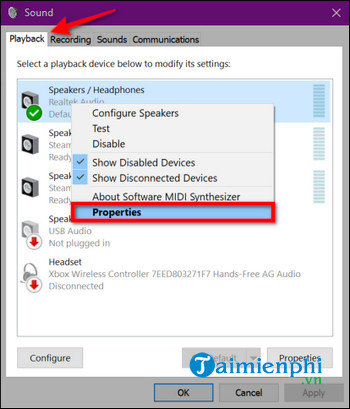
Next, select the audio device listed under the Playback tab and right-click on it to open the menu. Then, select Properties.
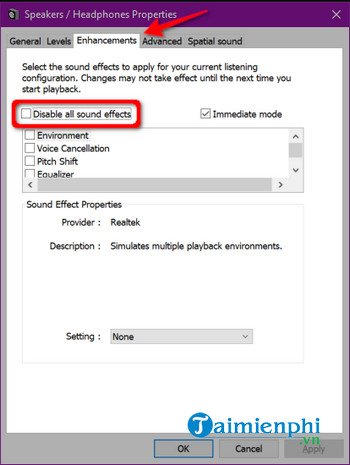
In the Speakers / Headphones Properties window that opens, click on the Enhancements tab, select the Disable All Sound Effects or Disable All Enhancements option. Click the OK button to confirm the changes.
If that doesn't work, you probably didn't choose the right audio device as the default. Follow the steps in Check your audio device through the Control Panel to set your default audio device. If the loss of sound persists, proceed to the next step.
6. Change Audio Format
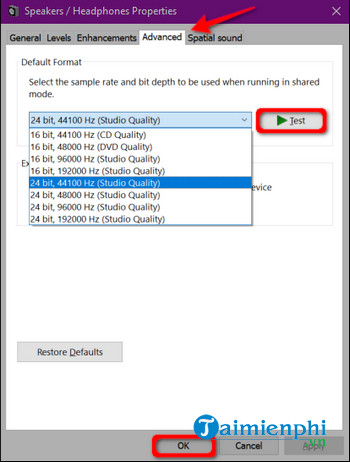
The current audio format may not work correctly with your computer's hardware. In this case, open Control Panel, select Hardware, and Sound > Sound.
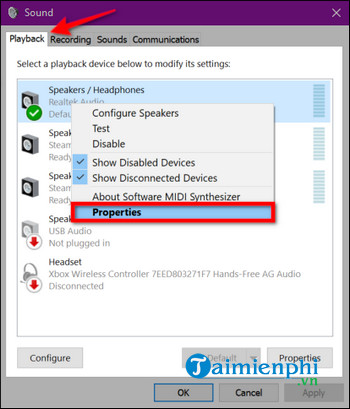
Next, click on the audio device listed in the Playback tab, right-click on it, and select Properties.
In the Speakers/Headphones Properties window, select the Advanced tab. In the Default Format drop-down menu, select a different format and click the Test button to see if the selected format works. If yes, click the Apply button > OK to save changes.
One of the most common problems on Windows 10 is sound loss. Therefore, if you are experiencing sound loss issues on Windows 10, then you are not alone. It's important that audio errors on Windows 10 can be fixed quite easily, and here are some ways that you can apply. You don't necessarily have to try all methods, but go from basic to advanced.
Read More: How To Fix Windows 10 Sound Not Working


0 comments: