Taking a screenshot on Windows 10 is a fundamental skill that can come in handy in various situations. Whether you need to capture an important moment, save an error message for troubleshooting, or simply want to share something interesting with others, knowing how to take a screenshot efficiently is essential.
Fortunately, Windows 10 offers several methods and shortcuts to capture your screen effortlessly. One of the most common ways is by using the "Print Screen" key on your keyboard. By pressing this key, you can capture the entire screen and save it as an image file.
If you only need to capture a specific window or application, you can use the "Alt + Print Screen" shortcut. This allows you to focus on capturing just the active window instead of the entire screen.
Windows 10 also provides a built-in Snipping Tool that offers more advanced options for taking screenshots. With this tool, you can select specific areas of your screen, annotate them with text or drawings, and even delay the capture if needed.
Regardless of which method you choose, taking screenshots on Windows 10 is quick and straightforward. By familiarizing yourself with these techniques and shortcuts, you'll be able to effortlessly capture and share what's happening on your screen in no time.
5 START PC shares 3 simple and easiest ways to take screenshots of Windows 10 with you, especially for those who want to save images on the computer screen running the Windows 10 operating system but do not know how to choose the right tool. any screen capture tool.
There are many ways to capture Windows 10 screens today, you can use tools available on Windows 10 like Paint or Snipping Tools, and if you want to use more functions, try Faststone Capture software.
The Simplest And Easiest Way To Take Screenshots In Windows 10
Method 1. Screenshot Windows 10 With Snipping Tool
Step 1: You select the Windows window -> Type Snipping Tool -> Click Snipping Tool to open the tool
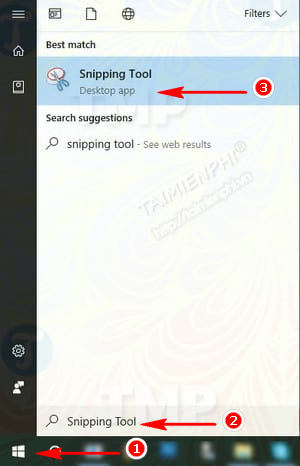
Step 2: To take a photo, select New , here you will have 4 options to take a screenshot of Windows 10
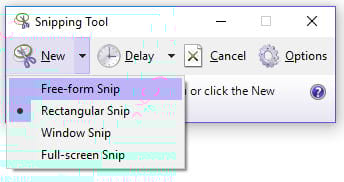
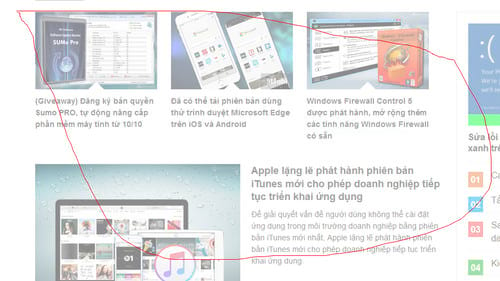
1. Free-form Snip: Capture the interface with freehand strokes
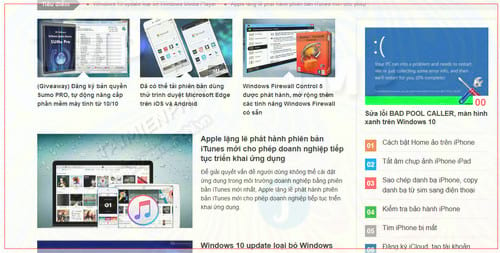
2. Rectangular Snip: Capture any interface by drawing a rectangle
3. Windows Snip: Capture the entire screen except the taskbar
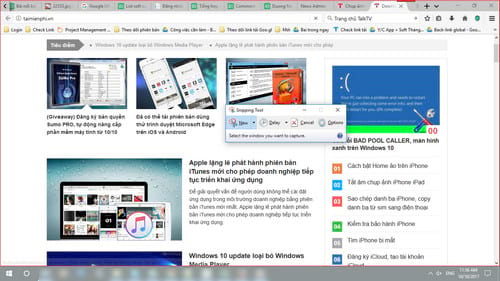
4. Full-Sreen Snip: Capture the entire Windows 10 screen including the Taskbar
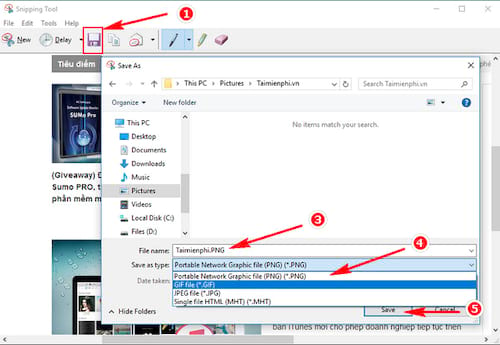
Step 3: After the capture is complete, select the Saver icon (save the image) -> edit the image file name -> Select the format (PNG, JPG, GIF, HTML) -> Select the storage folder -> Then click Save
Method 2. Capture Windows 10 Screen With Paint Tool
A. Capture The Entire Windows 10 Screen
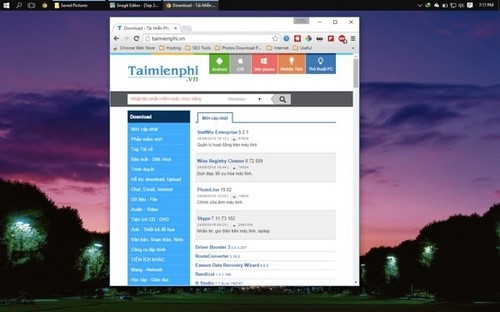
Step 1: You press the Print key on the keyboard to capture.
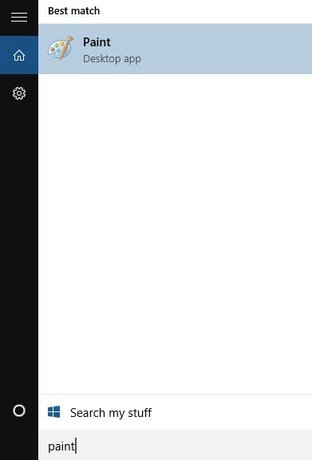
Step 2: Go to Start, type “ Paint ” and then select.
Step 3: Press Ctrl + V to paste the captured image. And from here you can save this Windows 10 screenshot by going to File > Save as
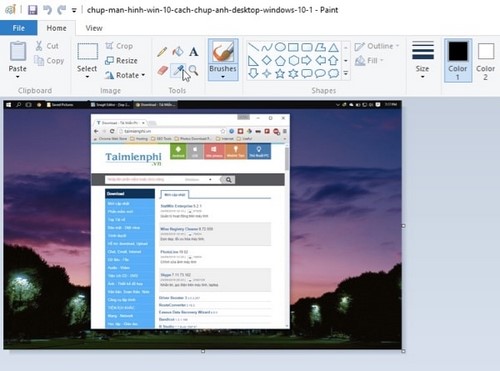
B. Capture The Active Window On Windows 10
Assuming the Chrome browser is running, you can press Alt-Print . Windows will help you capture all your activity on the browser.
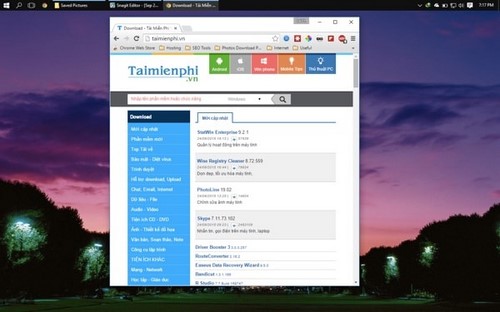
Similarly, after capturing, you also have to open Paint and press Ctrl + V to paste the content.
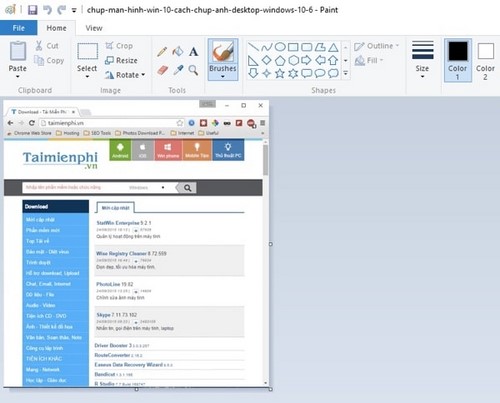
C. Capture Windows 10 Screen Without Editing, Save The Image Always
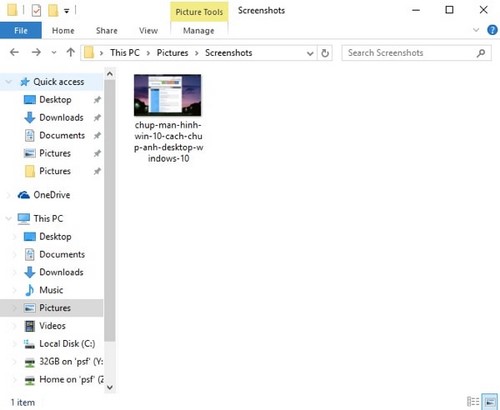
You can press PrtSc or Fn + Prtsc (depending on some laptop models) to take a screenshot of Windows 10.
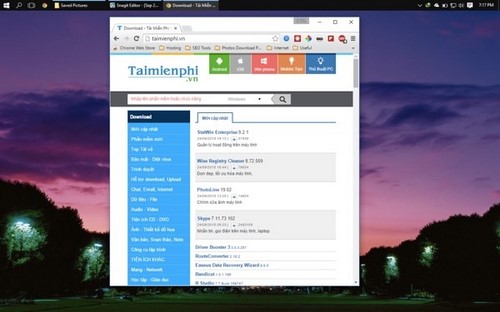
The image will be saved in the Pictures > Screenshots folder.
Method 3. How To Capture Windows 10 Screen With Faststone Capture Software
Faststone Capture is the most versatile screen capture software, equipped with a lot of features along with an intuitive interface that helps users to capture and edit that picture quickly, export the file extremely. convenience as well as optimal capacity. Readers can download Faststone Capture right here and try it out.
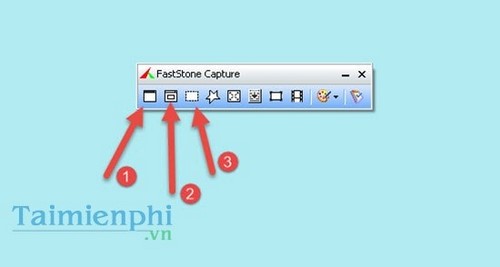
Faststone Capture provides us with many different types of shooting, of which there are 3 main types: full screen capture, capture according to the software in use and self-selected area capture.
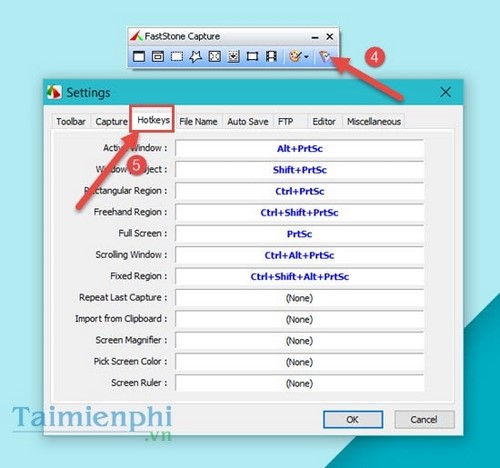
In addition, we can go to the settings and the option to install the screenshot shortcut, it's too simple, isn't it.
And of course photos taken with Faststone can be customized, add text and do a lot of different things
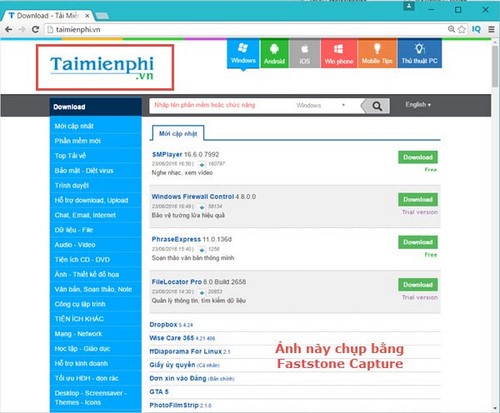
So 5startpc has just introduced to you 3 simple and easiest ways to take screenshots of Windows 10, you can choose any way to save the image on your Windows 10 computer screen.
Read More: How To Fix Windows 10 Sound Not Working
Tag: take screenshot Windows 10, take a screenshot on windows, screen shot windows 10, windows how to screenshot, windows 10 screenshot shortcut, screenshot shortcut windows 10, screen capture windows 10, print screen windows 10, screenshot on windows 10, screenshot shortcut key windows 10, snip and sketch shortcut, print screen shortcut windows 10, snipping tool shortcut windows 10, win 10 screenshot, one click screenshot windows 10, snipping tool keyboard shortcut


0 comments: