How To Factory Reset Windows 10
If you find yourself in a situation where your Windows 10 computer is not performing as expected or you simply want to start fresh, a factory reset can be the solution. By following a few simple steps, you can easily restore your Windows 10 operating system to its original state.

To begin the process of factory resetting Windows 10, there are several methods you can use. One common method is through the Settings menu. Simply navigate to the "Settings" option in your Start menu and select "Update & Security." From there, choose the "Recovery" tab and click on "Get started" under the "Reset this PC" section.

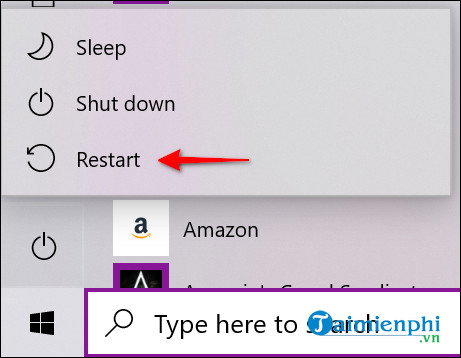
Another option is to use the Advanced Startup feature. This can be accessed by holding down the Shift key while clicking on the "Restart" option in your Start menu. Once your computer restarts, select "Troubleshoot," then "Reset this PC."

If you are specifically looking for instructions on how to factory reset an HP laptop running Windows 10, there may be additional steps involved. HP laptops often have their own recovery partition that allows for easy restoration of factory settings. To access this feature, restart your HP laptop and repeatedly press the F11 key until you see the Recovery Manager screen.

It's important to note that performing a factory reset will erase all personal files and installed applications from your computer. Therefore, it's crucial to back up any important data before proceeding with this process.

In conclusion, whether you're using a standard PC or an HP laptop, resetting Windows 10 to its factory settings can help resolve issues and provide a fresh start. By following the below instructions carefully and backing up your data beforehand, you'll be able to easily perform a successful factory reset on your Windows 10 device.

Right on its operating system, Windows 10 already provides the Reset Win 10 feature. With this feature, you only need a few quick steps to bring the operating system you are using to look like new without having to install it via disk, via USB, or having to reinstall the driver.

How To Factory Reset Windows 10

Benefits Of Factory Reset Windows 10

As mentioned above, resetting Windows 10 helps the computer return to its original state when we have just finished installing Windows, all the software or applications you previously installed will be not lost and replaced by the system. Operating system and available applications.

Advantage

- Easy to do, even if you have no computer knowledge.
- No need for support tools such as USB rescue or Hiren's BootCD rescue disk.
- Fewer errors during recovery.

Why Factory Reset Windows 10?

There are many reasons why you are forced to reset the computer back to its original state instead of reinstalling Windows such as:

- The computer is faulty.
- Installing too much software makes the computer slow down.
- Due to a long time of not cleaning garbage.
- The computer is infected with a virus, or malicious code that damages system files.
- Unable to remove all tools or applications.
- The computer is infected with Adware and has many ads on when opening the browser.

How To Factory Reset Windows 10

Step 1: To reset Windows 10, first click Start and select Settings or press the Windows + I key combination to enter the Setting app. Here you click Update & Security.

How to reset windows 10 to factory settings


Step 2: In the list on the left, click Recovery, in the Reset this PC section, click Get Started

How to reboot windows 10 to factory settings


Step 3: A new window will appear. Here there will be 2 options: Keep my files and Remove everything

- Keep my files: This option deletes all applications and software you have installed on your computer but will keep the files in the user folder ( by default that folder is in the path C\Users\username).

- Remove everything: This option means that you agree to delete all applications, and software, and clean the Windows installation partition or the entire hard drive as new (only choose this if you want to reset Windows 10 back to the original).

=> Depending on your needs, you can choose 1 of 2 options, here Taimienphi will give 2 cases for you to easily implement.

windows 10 how to restore


* Case 1:  Select  Keep my files, and a notification window pops up, click Reset to start the Reset process on Windows 10.

- Note: After clicking reset, the computer will restart. You will not be able to go back to the previous steps,

how to factory reset windows 10,


- The computer starts to reboot and starts the Windows 10 reset process

- After the reset process is successful, the machine will automatically re-enter the operating system as it was.


* Case 2: Select  Remove everything, to clean Windows and return Windows operating system to a new state.

- Wait a moment for the system to launch the process.


- The next interface you select is Only the drive where Windows is installed, which means that the resetting process of Windows 10 will erase everything in the hard drive partition containing the Windows 10 operating system. Absolutely do not select All drives, because it will erase all other drives and it will be very difficult to recover data.

how to reset windows 10 to factory settings

- A new window interface appears and here there are also 2 options for you:

+ Just remove my file: This option helps you delete quickly, which means that after deleting you can still use the software. data recovery to recover, similar to the Quick Format USB option.

+ Remove files and clean the drive: Wipe data and it is very difficult for you to recover data, the downside of this option is that the deletion time will be quite long. This method is only useful in the case that after resetting the device you will sell or give it to someone else, but if you still use it, you don't need to choose this option to waste time.


A message in the next window with the content as shown below, click the Reset button to perform the process of restoring the computer to a new state. Windows will restart and take a certain amount of time depending on your computer configuration to reset the system.

how to reboot windows 10 to factory settings


The computer After the reset process, you will need to perform a few steps to reset Windows 10 before using it as with a new operating system.

The installation steps after resetting Windows 10 are as follows:

- Select language and time zone

The installation steps after resetting Windows 10


In this step you can skip and edit the time after the installation is complete, How to adjust the time in Win 10 or adjust 24h in Windows 10  is quite simple, just like how it is done on other versions of Windows.

- Click  Accept  to agree to the terms of use


- Click Use Express Setting


- Enter  Username, then click  Next  to finish

With just a few simple steps right in Windows, you can return the operating system on your computer to its default state with the Reset Windows 10 feature. You can also refer to how to activate it. 180-day license on Windows 10.

The reset of Win 10 is not always as convenient as many of you think, some of you have encountered the error of resetting Win 10 and had to reinstall Windows 10 when you couldn't find a fix, Taimienphi has summarized how to fix the error that does not reset. Win 10 in recent tips, if you are facing this situation, please refer to how to fix the Win 10 reset error here. If you are using Windows 11, please refer to this article for an effective reset.
10 Things To Know When Using Windows 10

Windows 10 is the latest Microsoft operating system that was officially commercialized last year, Windows 10 is introduced as the most powerful and multitasking operating system with features distilled from older versions as well as the latest versions. New features developed by Microsoft.

Windows 10 is an improved and added operating system from the Windows 8 operating system, which is said to be most suitable for use on mobile as well as on desktop, optimized for both normal and touch machines. You can also experience the Windows 8.1 operating system if you have never used and installed this operating system.

10 things to know when using Windows 10 will tell us about what Windows 10 can do, improved features bring convenience to users. You can also refer to the article Things to know before upgrading Windows 10 to learn more about this latest operating system. In this article, 5startpc will help you learn about this new Windows 10 operating system.

10 THINGS TO KNOW WHEN USING WINDOWS 10

1. Windows 10 allows you to use it for free for the first year before you decide whether to buy a license or not, and updating from Windows 7 or 8 is completely free.

2. In Windows 10 you can customize the "Start menu" bar to your liking, you can even drag and drop the Start menu frame freely, visit the article to customize the Start menu in Windows 10 to know more about it. this feature


3. You can pin or unpin folders or applications in the Start menu by right-clicking a folder and selecting pin to Start Menu (or unpin to Start Menu if you want to remove it).


4. Resize applications, and folders and move them to your liking by dragging and dropping the mouse.


And you can customize the size you want

5. In Windows 10 you can quickly find everything on your computer from text files, pictures, or applications. Just open the Start menu and type.


6. Creating a multi-screen "Desktop" helps you more conveniently in arranging to-do tasks by clicking on the task view icon in the left corner of the screen.


7. Flexible switching between "Desktop", creating and deleting quickly, maximum support for usability.


8. The "snap assist" feature in Windows 10 lets you see all the tabs and folders you are opening in the most intuitive way. You just need to drag a folder or any open folder to the right corner of the screen.


9. Microsoft Edge, the new browser developed specifically for Windows 10. Powerful, fast as well and high-performance, this is the replacement browser for the outdated Internet Explorer (note that in Windows 10 there is still Internet Explorer ).


10. In Windows 10 you can customize your lock screen easily, you can replace the pictures you want. To access this feature, follow the path: Setting -> Personalization -> Lock screen. The fastest way is to type Lock Screen into the search bar.


With 10 things to know when using Windows 10 to help you learn more about Windows 10, you will have a better experience with this operating system. In addition, if you want to install Windows 10 instead of updating, you can refer to the article on how to install Windows 10 with DVD and USB to experience this operating system as soon as possible.

Fix Windows 11 Wifi Not Showing Up

Are you experiencing the frustrating issue of your Windows 11 Wifi Not Showing Up? Don't worry, you're not alone. Many users have encountered this problem, and we are here to help you fix it.

When your Windows 11 device can't connect to Wi-Fi or the available networks are not showing up, it can be quite inconvenient. However, there are several potential solutions that can get you back online in no time.

Firstly, try restarting your computer and router. Sometimes a simple reboot can resolve connectivity issues. If that doesn't work, make sure that the Wi-Fi adapter is enabled on your device. You can do this by going to the Device Manager and checking if the adapter is enabled and functioning properly.

If the issue persists, updating your network drivers might help. Visit the manufacturer's website for your Wi-Fi adapter and download the latest drivers compatible with Windows 11.

Another troubleshooting step is to reset your network settings. Open the Settings app on Windows 11, go to Network & Internet, select Advanced network settings, and click on Network reset. This will remove any custom network configurations and reset them back to default settings.

Additionally, check if there are any pending Windows updates for your system as these updates often include bug fixes related to connectivity issues.

In some cases, disabling IPv6 or changing other advanced network settings may also resolve the problem. However, it's recommended to consult with a technical expert or refer to official Microsoft support resources for detailed instructions specific to your situation.

Remember that each system may have unique factors contributing to this issue; therefore, it's important to explore different solutions until you find one that works for you.

By following these steps and exploring the possible solutions mentioned above, you should be able to fix the "Windows 11 Wifi not showing up" problem and regain access to wireless networks seamlessly.

In the process of using Windows 11, if you have trouble losing Wifi, can't connect to Wifi or Wifi doesn't work without knowing how to fix it, you can refer to the simple guide to fixing Wifi loss on Windows 11 Click here and follow the instructions.

With the Windows 11 operating system, you can modify the Wifi network settings as you like, however, sometimes these changes can backfire causing Wifi errors, losing Wifi options, or not showing the Wifi icon. , in such situations, the last method you can do is to reset Network Settings to fix Windows 11 Wifi not showing up

How To Fix Windows 11 Wifi Not Showing Up

Step 1: Press Windows + i key combination to enter Windows Settings.

Step 2: Select the Network & Internet option in the list on the left.

Step 3: Now, scroll down and click on Advanced Network Settings .

Windows 11 wifi not showing

Step 4: In the Advanced Network Settings section , select Network Reset .

Windows 11 wifi not showing up

Step 5: Finally, click Reset Now.

Wifi not showing in windows 11

Step 6: Select Yes and the reboot will start in 5 minutes. The restart is to ensure that all changes are successfully implemented, and also fix Wifi loss on Windows 11.

Note: You need to save the work in progress, close other applications, and start Restart your PC to finish resetting network settings on Windows 11.

Windows 11 can't connect to wifi

After a few minutes, Windows 11 will restart and all your networking functions will be reset to factory settings, Wifi loss error on Windows 11 is fixed, and you can connect to Wifi as usual.


                              Read More: How To Fix Windows 11 Sound Not Working


Tag: windows 11 wifi not showing up, Windows 11 wifi not showing, wifi not showing in Windows 11, wifi network not showing up Windows 11, Windows 11 can't connect to wifi, Windows 11 not connecting to wifi. wifi not showing up Windows 11, wifi missing Windows 11, Windows 11 no wifi, Lenovo laptop not detecting wireless network Windows 11, hp laptop won't connect to Wi-Fi Windows 11, Windows 11 cannot connect to wifi, Windows 11 won't connect to wifi, wifi can't connect to this network windows 11

How To Fix Windows 11 Sound Not Working

How To Fix Windows 11 Sound Not Working

In my previous tutorial "How To Fix Windows 10 Sound Not Working" detailed instructions on how to effectively solve it for Windows 10. Basically, the way to solve Windows 11 Sound Not Working errors is similar, with some small changes below so you should take note

Windows 11 Sound Not Working makes users unable to listen to music, watch YouTube videos without sound, or play games without sound, Normally, the sound loss error on Win 11 occurs due to a software conflict, or no sound driver installed. To fix the sound loss error on Win 11 most effectively, readers can refer to the instructions shared in the article below and follow the ways.

Audio problems on Windows 11 can be caused by hardware and software failures, specifically, it can be due to misconfiguration, improper installation, or it can also be due to the audio file format.


Windows 11 sound not working

How To Fix Windows 11 Sound Not Working


Method 1: Restart The Computer

Restarting the computer is considered the simplest solution "of all time", helping to fix most errors, and problems, including sound loss on Windows 11.

Restarting the computer will wipe out the cache, which can cause errors, and compatibility issues with software, and audio drivers and cause errors. Finally, try to check if the sound loss error in Windows 11 remains. If so, refer to some of the next fixes below.


Method 2: Check The Audio Output

The cause of the other Windows 11 audio loss error may be that the user selected the wrong audio output device, in case if there are multiple output devices connected.

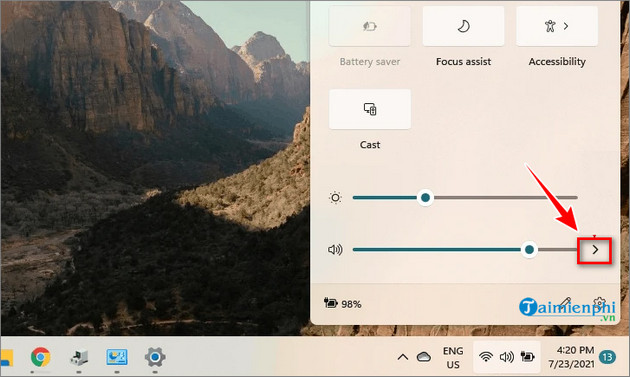
To test the selected audio output device, first press Windows + A to open the Action Center.

Here you find and click on the arrow-shaped icon next to the volume level icon as shown in the image below:

Windows 11 no sound

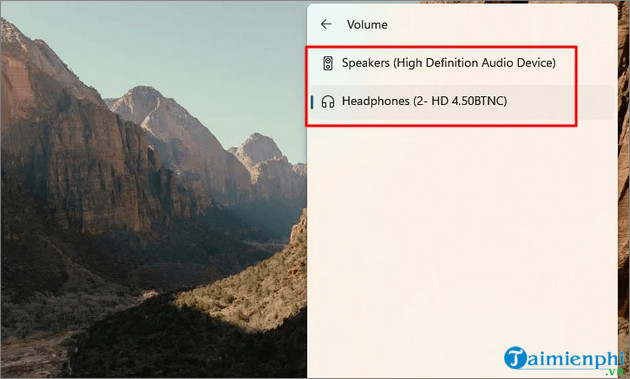
The above operation opens the list of audio devices connected to the system. Here select any device where you want to play the audio and check if the sound loss error in Windows 11 remains.

Windows 11 audio not working

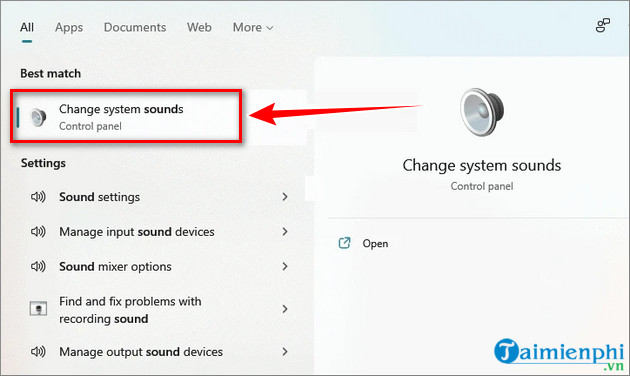
If the error no longer occurs, you can set the device as the default option for Windows 11 to play a sound. To do this, type Change system sound into the Search box on the Start Menu and click to open it in the list of search results.

Windows 11 sound problem

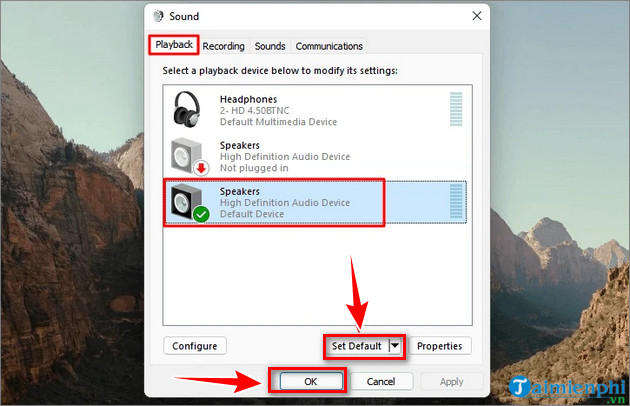
On the Sound window, find and click the Playback tab select the output device you want to set as default, and click the Set Default button in the bottom corner. Finally, click OK to save your changes and close the window.

Sound not working windows 11


Way 3: Check Windows 11 Audio Settings

To check Windows 11 audio settings and fix sound loss, follow the steps below:

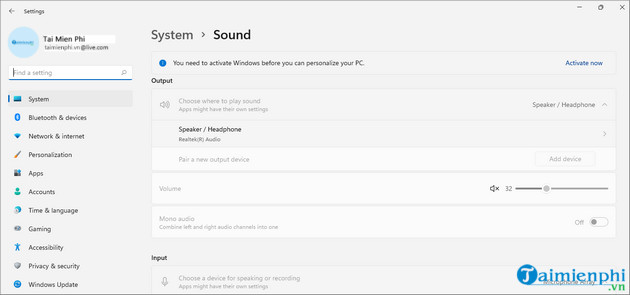
Step 1: Right-click on the sound icon in the system tray located in the bottom right corner.
Step 2: Select Sound Settings.
Step 3: Here you check the audio volume level.

Fix Sound Loss Error on Windows 11

Step 4: Check if the speakers/headphones are turned on.
Step 5: Check if the speakers/headphones are properly connected to the computer
Step 6: Set the device audio to Default.
Step 7: Check again to make sure the software you're using is configured for your device's audio forwarder.
Step 8: Restart your computer to apply the change. At this point, the sound error in Windows 11 will no longer be available.

Method 4: Update to the Latest Audio Driver Version

Outdated audio drivers are also one of the main causes of sound loss errors in Windows 11. Try updating to the latest version of the audio driver to see if that helps fix the error. However, your computer now needs a network connection. If you have a Wi-Fi loss error on Windows 11, you can refer to how to fix it here and proceed to Update Driver and reinstall the audio driver on Windows 11.


                             Read More: Fix Windows 11 Wifi Not Showing Up

Follow the steps below:

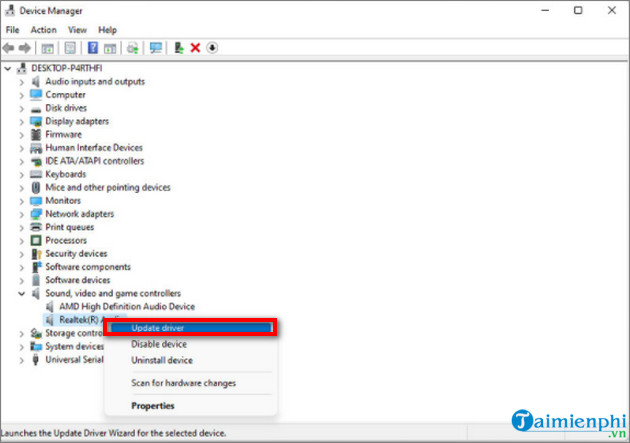
Step 1: Right-click the Start button and select Device Manager.
Step 2: Here find and expand the Sound, Video, and Game Controllers section.
Step 3: Find and right-click on your audio device that is failing.
Step 4: Click Update Driver to update to the latest audio driver version.

Fix Sound Loss Error on Windows 11

The system will automatically search and install the latest audio driver versions. Follow the same steps to update other audio drivers (if any) and check if the sound loss error in Windows 11 remains.

Besides, if you cannot hear sound during the conversation, you also need to check your friend's microphone to see if it is working to make sure this is not a microphone error.


Method 5: Restart The Audio Service

If none of the above works, the next fix is to try restarting the Audio service.

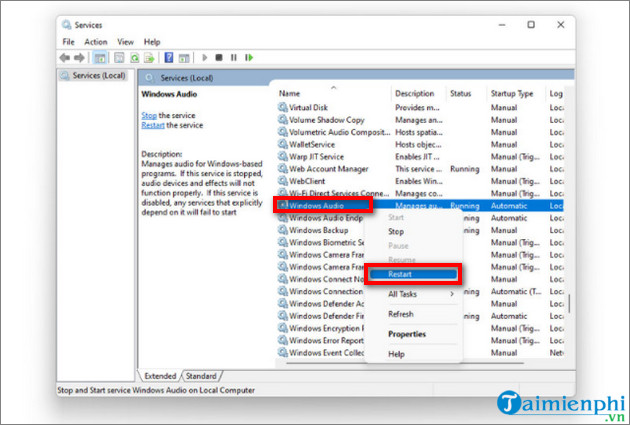
Step 1: Enter services in the Search box on the Start Menu. On the list of results, click to open the window.
Step 2: On the find window and right-click on Windows Audio, select Restart to restart the service.

Fix Sound Loss Error on Windows 11

The above operation is to restart all Audio services on the system. Once done, perform the same steps and restart the Windows Audio Endpoint Builder and Remote Procedure Call services.

Method 6: Disable Audio Enhancements

According to some users shared on technology forums, Audio Enhancements is the cause of the audio loss error in Windows 11. The solution to fix the error in this case is to turn off Audio Enhancements.

First, type Change system sounds into the Search pane on the Start Menu. On the list of results, click to open the window.

No sound on computer windows 11

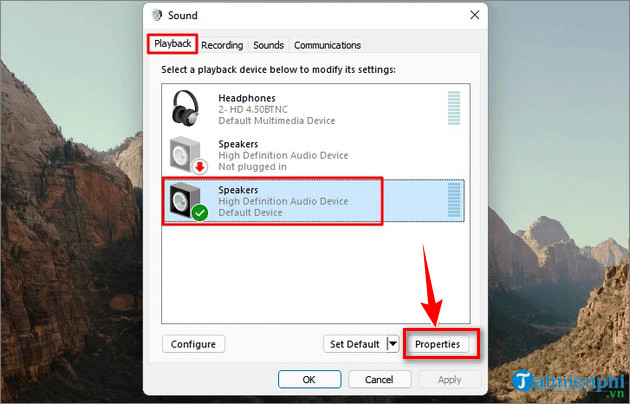
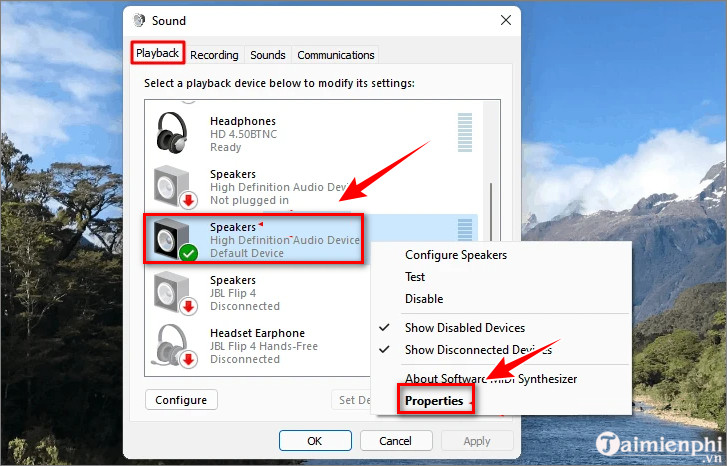
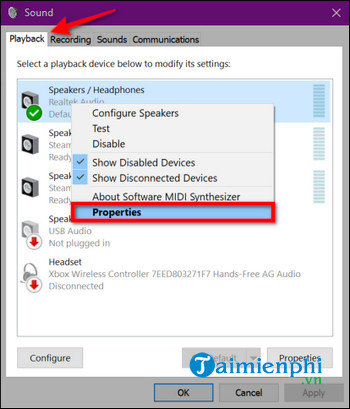
On the Sound window, find and click on the Playback tab and select the device or speaker that is failing, Select Properties in the bottom corner.

Fix Sound Loss Error on Windows 11

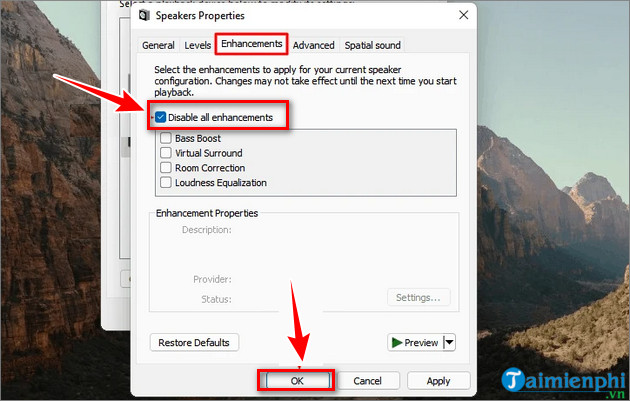
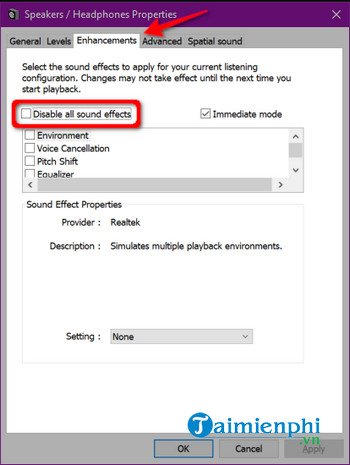
Next on the Properties window, find and click on the Enhancements tab. Here you find and tick, select the Disable all enhancements option, then click OK to save your changes and close the window.

How to fix computer loss of sound

Finally, try to check if the sound loss error in Windows 11 remains.

Method 7: Change Other Audio File Formats

An audio format that is incompatible with hardware settings can also be the cause of the sound loss error in Windows 11. In this case, the solution is to change the compatible audio file format.

To change the audio file format, open the Sound window as shown above, then access the Playback tab. Next, find and right-click on the audio output device you're having trouble playing audio and select Properties.

Ways to fix sound problems on Windows 11

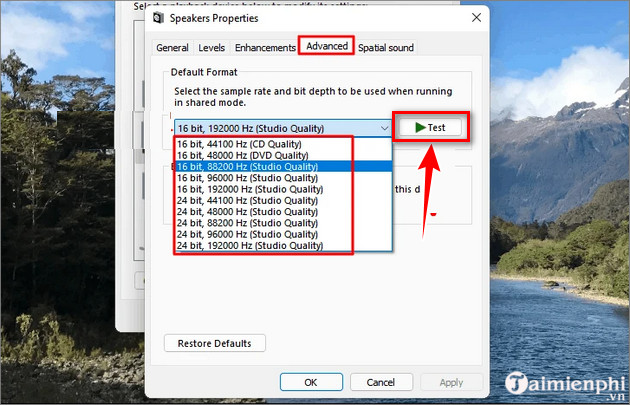
In the Speakers Properties window, find and click the Advanced tab, then click on the audio file format from the menu and click Test. This is to find an audio file format that is compatible and works well.

How to fix sound problems on Win 11

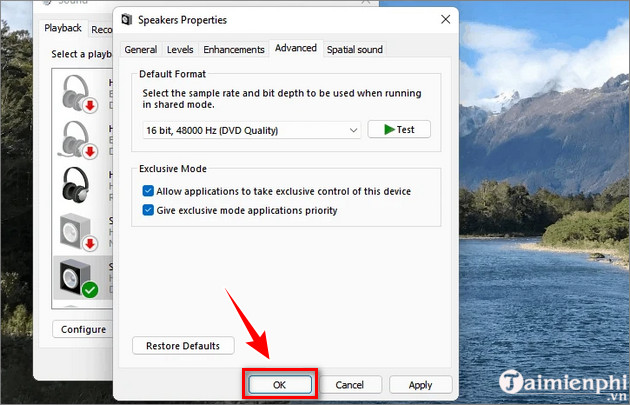
Finally, click OK to save your changes.

fix windows 11 no sound error

Hopefully, the ways to fix sound loss in Windows 11 that 5startpc introduced above will help you fix the error. In addition, if you are facing the microphone not working error on Windows 11 after upgrading to the latest version of Windows, readers can refer to some articles already on 5startpc to learn how to fix the error.https://thuthuat.taimienphi.vn/cach-sua-loi-mat-am-thanh-trong-windows-11-65231n.aspx

Hopefully, the ways to fix sound loss in Windows 11 that 5startpc introduces above will help you fix the error. In addition, if you still can't fix it, you can reset Windows 11 to its factory state, then try again to see if there is sound.

                          Read More: 3 Simple Ways To Take Screenshots Windows 10

Tag: windows 11 sound not working, windows 11 no sound, windows 11 audio not working, no sound windows 11, windows 11 sound problem, sound not working windows 11, audio not working windows 11, no sound on computer windows 11, laptop sound not working windows 11, windows 11 sound issues, laptop speakers not working windows 11, windows 11 no sound after update, windows 11 no audio, hp laptop sound not working windows 11, no sound on laptop windows 11


How To Fix Sound Errors on Windows 10

How To Fix Sound Errors on Windows 10

You play a game or watch a movie on your PC but don't hear any sound coming from it. On the surface, there is no obvious reason for the loss of sound. The problem may appear after you update the operating system, due to program or software conflicts from 3rd parties. In this article, we will introduce you to some ways to check and fix audio errors on Windows 10.

Fix sound errors on Windows 10

The audio bug can be caused by 3rd party software and requires a patch. The problem can also be due to Windows 10 itself or from some hardware. The following guide starts with ways to fix the error from simple steps and goes deeper into Windows 10 if you continue to face the problem of losing sound.

How To Fix Sound Errors On Windows 10


1. Implement Basic Methods First

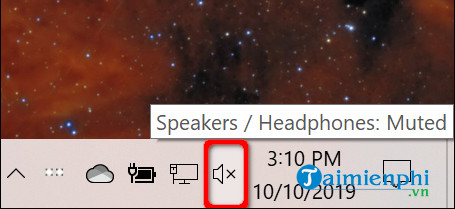
First, you need to verify that the sound is not accidentally muted on the PC. If your keyboard has a volume control, press the key or adjust the controls to see if the volume goes up and down. You can also check the speaker icon next to the system clock.

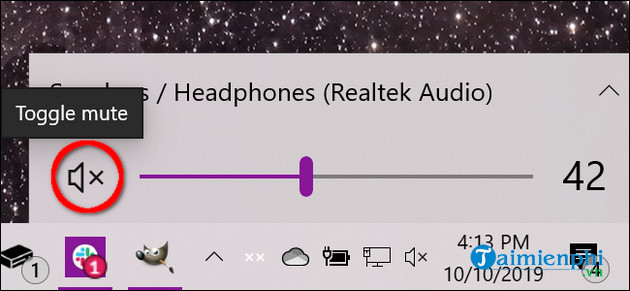
As the below screenshot shows, the speaker icon with an X means that the sound is off. Simply click on it to expand the audio panel.

fix sound errors on Windows 10

Next, click on the speaker icon to the left of the slider to open the sound.

fix sound errors on Windows 10

You should also verify that the sound is not muted at the hardware. For example, your speakers might have volume buttons, or they might accidentally be unplugged from your PC or power outlet. Similarly, your headphones or microphone might include volume controls that have been disabled or are not connected to your PC.
Another simple fix is to make sure that the problem is not related to a specific application or program installed on your computer. For example, the sound is muted on YouTube.

cach sua loi am thanh tren windows 10 3

In addition, users can also try installing all Windows 10 updates or restart the computer.

fix sound errors on Windows 10


2. Check The Audio Equipment

In general, you should only have one audio device installed. However, the list piles up when you start installing external devices like HTC Vive, wireless Xbox controllers, headphones, etc.

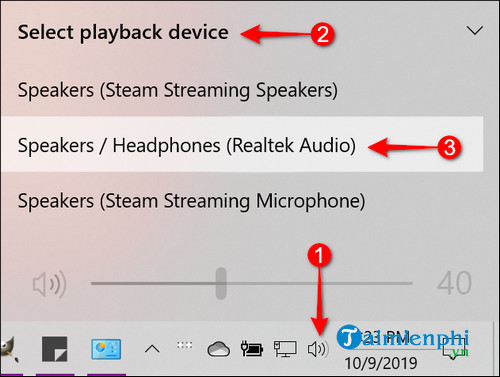
There may be situations where you switch from headphones to your laptop's existing speakers, but Windows 10 still plays audio through those disconnected headphones. You can verify the default audio device in 1 of 2 ways: from the taskbar or Control Panel.

Check the audio device from the taskbar: Click on the speaker icon located next to the system clock. You'll see 1 name listed on the volume control panel. Click on the name to open the Select Playback Device list and select a different audio device until you hear audio.

fix sound errors on Windows 10

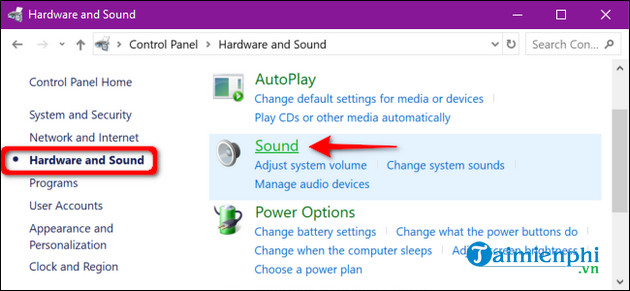
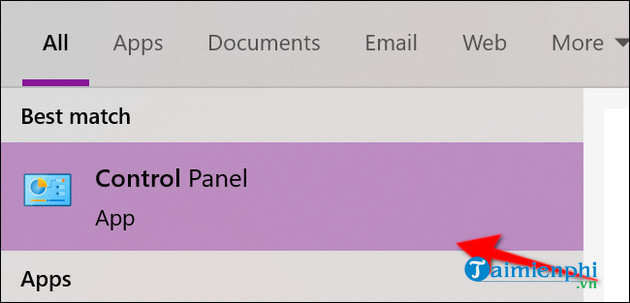
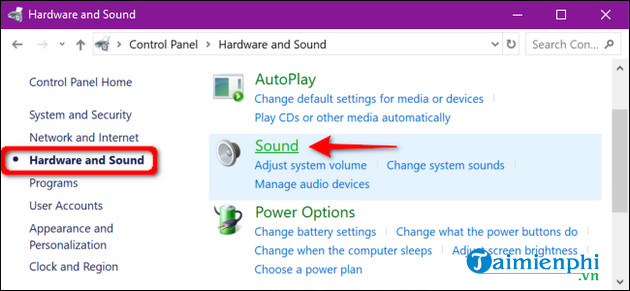
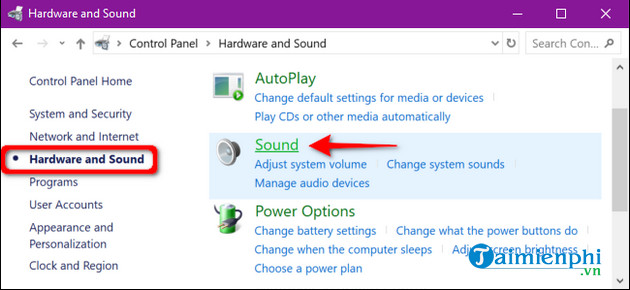
Check the audio device via Control Panel: You enter the keyword Control Panel in the search field on the toolbar and select Control Panel from the search results. Next, select Hardware and Sound > Sound.

fix sound errors on Windows 10

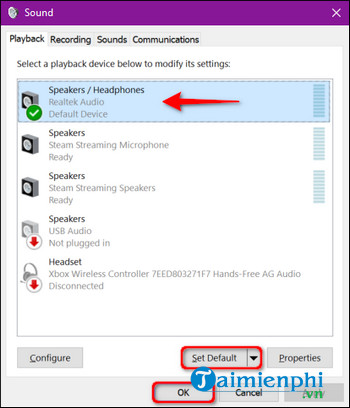
In the Sound window, set your audio device as the default device by clicking on it and pressing the Set Default button. Finally, click OK to save changes.

fix sound errors on Windows 10


3. Run The Troubleshooter

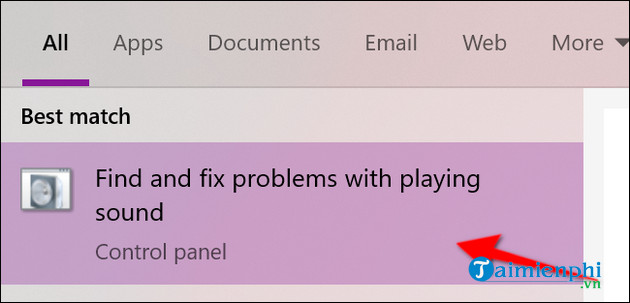
Windows 10 includes a built-in troubleshooter that scans the system and provides a possible fix. Enter the keyword Audio in the search field on the taskbar and click Find and Fix Problems with Playing Sound from the search results to open the troubleshooter in the Control Panel.

fix sound errors on Windows 10

You can also access some troubleshooters by going to Start > Settings > System > Sound > Troubleshoot.
After the troubleshooter scans the audio devices, select the device that needs to be processed and click the Next button.
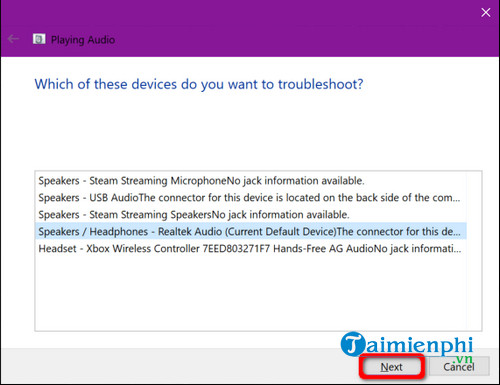
fix sound errors on Windows 10

Windows 10 scans for problems. You follow any instructions available to resolve the audio loss error on the computer.


4. Restart The Audio Device

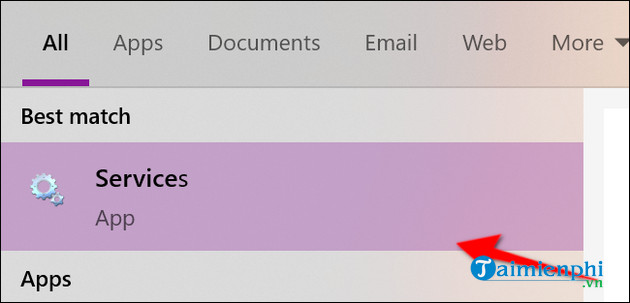
Enter the keyword Services in the search field on the taskbar and select Services from the search results.

fix sound errors on Windows 10

In the Services window, you will need to restart the following 3 services:
- Remote Procedure Call (RPC)
- Windows Audio- Windows Audio
Endpoint Builder

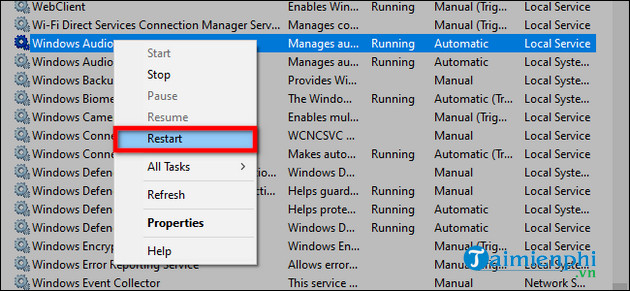
For each service, you click to select, right-click to open the service's menu, and then select the Restart option. If the Restart button is grayed out, replace it with the Refresh button.

fix sound errors on Windows 10


5. Turn Off Audio Enhancements

These "enhancements" are provided by audio hardware manufacturers and Microsoft to provide the best experience possible. However, they can be the cause of the problem.

You type Control Panel in the search field on the taskbar and select Control Panel from the search results.

fix sound errors on Windows 10

Select Hardware and Sound from the main Control Panel menu and then Sound.

fix sound errors on Windows 10

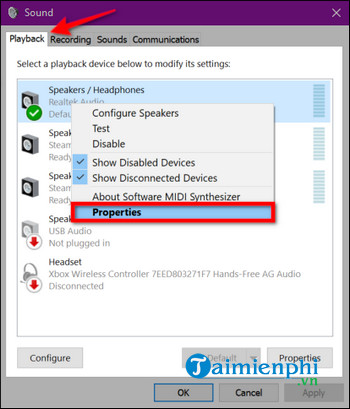
Next, select the audio device listed under the Playback tab and right-click on it to open the menu. Then, select Properties.

fix sound errors on Windows 10

In the Speakers / Headphones Properties window that opens, click on the Enhancements tab, select the Disable All Sound Effects or Disable All Enhancements option. Click the OK button to confirm the changes.

fix sound errors on Windows 10

If that doesn't work, you probably didn't choose the right audio device as the default. Follow the steps in Check your audio device through the Control Panel to set your default audio device. If the loss of sound persists, proceed to the next step.


6. Change Audio Format

The current audio format may not work correctly with your computer's hardware. In this case, open Control Panel, select Hardware, and Sound > Sound.

fix sound errors on Windows 10

Next, click on the audio device listed in the Playback tab, right-click on it, and select Properties.

fix sound errors on Windows 10

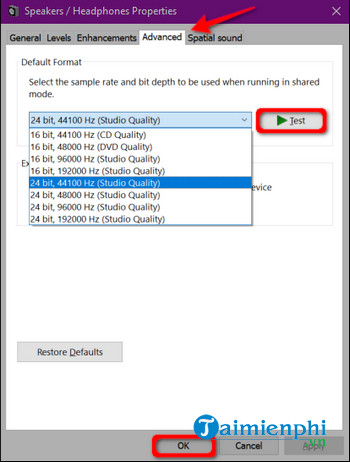
In the Speakers/Headphones Properties window, select the Advanced tab. In the Default Format drop-down menu, select a different format and click the Test button to see if the selected format works. If yes, click the Apply button > OK to save changes.

fix sound errors on Windows 10

One of the most common problems on Windows 10 is sound loss. Therefore, if you are experiencing sound loss issues on Windows 10, then you are not alone. It's important that audio errors on Windows 10 can be fixed quite easily, and here are some ways that you can apply. You don't necessarily have to try all methods, but go from basic to advanced.


                    Read More:  How To Fix Windows 10 Sound Not Working